What Is Fuzzy Lookup In Excel

What Is Fuzzy Lookup In Excel


 Fuzzy text matching is the process of finding text strings that are similar, but not exactly identical to a given reference string.

It's often used when working with data that may contain errors or inconsistencies such as misspellings, typo error, or variations in formatting.

Using fuzzy text matching, you can identify and group together similar strings, which can help to clean up data to make it more useful.

Fuzzy text matching is a technique used to compare text strings that may have minor differences.

One common approach is to use a similarity score based on the number of edits (insertions, deletions, or substitutions) required to transform one string into another.

The similarity score ranges from 0 to 1, where 1 means the strings are identical, and lower scores indicate greater differences.

Let us understand through an example

Consider the following pairs of strings:

Apple and Apples - The Levenshtein distance is 1, because adding an "s" to "apple" yields "apples".

Banana and Bananas - The Levenshtein distance is also 1, because adding an "s" to "banana" yields  Bananas .

Car and Card - The Levenshtein distance is 1, because replacing the final "r" in "car" with a "d" yields  Card .

Dog and Cat - The Levenshtein distance is 3, because three edits are required to transform "dog" into "cat" (replace "d" with "c", delete "o", and replace "g" with "t").

There are many approaches on fuzzy lookup. One approach of fuzzy text matching is to use regular expressions, which allow you to search for patterns within text.

Regular expressions can be used to match approximate patterns by allowing for variations in the text, such as optional characters or spelling variations.

For example, the regular expression "Colou?r" would match both "color" and "Colour", because the "u" is optional.


Some examples of how fuzzy text matching can be useful:

1. Deduplication - When working with large datasets, it's common to encounter duplicates, which can skew your analysis and waste valuable storage space.

Fuzzy text matching can be used to identify and group together strings that are similar, but not necessarily identical, which can help you to identify duplicates more effectively.

2. Data cleaning -Fuzzy text matching can also be used to clean up messy or inconsistent data.

For example, you may have a dataset of product names and descriptions, and you want to standardize the formatting to make it more consistent.

Fuzzy text matching can be used to identify similar strings and suggest changes that can help to standardize the data.

3. Record linkage - In some cases, you may have data from multiple sources that you want to combine or match up.

For example, you may have a dataset of customer orders from an e-commerce website, and you want to match up each order with the corresponding customer from a separate dataset. Fuzzy text matching can be used to identify customers with similar names or addresses, which can help to link up the data.


4. Text mining - Fuzzy text matching can also be used in natural language processing and text mining applications.

For example, you may want to identify all the mentions of a particular keyword or phrase in

To be continued...


How To Import Data From Website To Excel

How To Import Data From Website To Excel


MS Excel is a powerful spreadsheet application that is widely used for data analysis in any  organization. One of the features of Excel is the ability to import data from websites into the application.

This feature makes it possible to bring information from various data sources into one central location, making it easier to analyze, compare, and manipulate data.

In this article I will show how to import data from website to excel 2016 onward version

To get started, you'll need to have Microsoft Excel 2016 or later version installed on your computer.

The "From Web" feature is not available in earlier versions of Excel. Once you have the 2016 +  version of Excel, follow these steps to import data from a website:

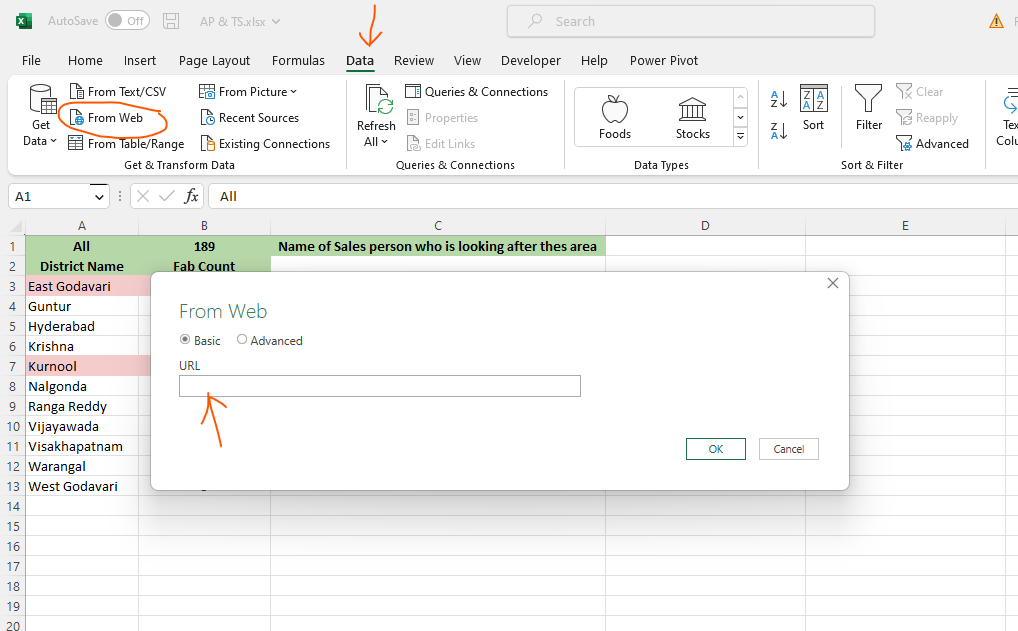
1. Open the Microsoft Excel and click on "Data" in the top menu bar.

2. In the drop-down menu, select "From Web."

3. In the "From Web" window that appears, enter the URL of the website from which you want to import data.

4. Click on "Go."

The below figure shows how to to do the From Web features in excel


After the website has loaded, select the table you want to import. You can do this by clicking and dragging your mouse to highlight the table.


Once you have selected the table, click on "Load" to import the data into Excel.

After you've imported the data, you can use Excel's built-in tools to clean, manipulate, and analyze the data.


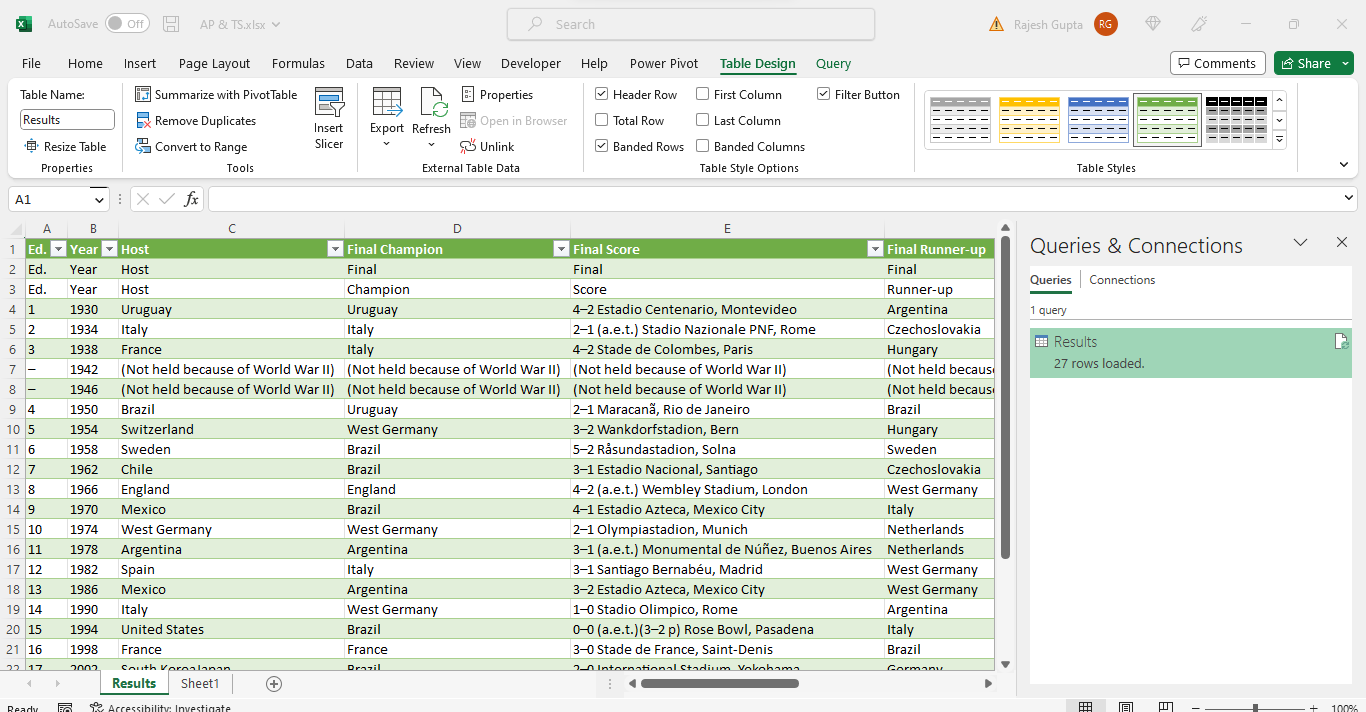
Once you click on the load data or transform data as per your requirement, it will be loaded in the excel as shown in the above figure.

Whenever the wikipedia will upload of modify the data you just need to refresh, it will be reloaded in you excel sheet


Let us understand few benefits of this , you can sort the data based on specific criteria, create charts to visualize the data, or perform calculations on the data. You can also filter the data to display only the information that's relevant to your needs.

The key benefits of importing data from websites into Excel is that you can quickly and easily gather information from a variety of sources.

This can be especially useful when you're working on projects that require data from multiple websites or sources. Additionally, by importing data into Excel, you can take advantage of Excel's powerful data analysis tools to gain deeper insights into your data.

What kind of data can be imported to excel


Data that can be imported from websites into Excel using the "From Web" feature includes tabular data, such as tables and spreadsheets, and structured data, such as HTML tables and XML data.
This data can be imported into Excel as a table or a list, which can then be used to perform various data analysis and manipulation tasks.

On the other hand, certain types of data cannot be easily imported from websites into Excel using the "From Web" feature like 

1. Data that is not organized in a structured format, such as text documents or images, cannot be easily imported into Excel. In these cases, manual data entry or a different method of data transfer may be necessary.

2. Data that is protected by login credentials or encryption cannot be easily imported into Excel using the "From Web" feature. In these cases, the data may need to be exported from the website into a different format, such as a CSV or XML file, before it can be imported into Excel.

3. Data that requires user interaction, such as drop-down menus or input forms, cannot be easily imported into Excel using the "From Web" feature. In these cases, manual data entry or a different method of data transfer may be necessary.


What are the challenges in importing data from website


There are several issues or challenges that can be arise when importing data from websites into Excel.

Few of them are listed below

1.    Accuracy of data is one of the biggest challenges when importing data from websites is ensuring that the data is accurate and up-to-date.
Some websites may provide outdated or inaccurate information, so it's important to verify the data before using it.

2.    Some websites may use complex formatting or coding that can make it difficult to import the data into Excel.
In these cases, you may need to clean or manipulate the data in order to get it into a format that can be used in Excel.

3.    Websites can change over time, which can result in broken links or changes to the data that's being imported.
To avoid these issues, it's a good idea to regularly check the websites you're importing data from and update the data in Excel as needed.

4.    Some websites may limit the amount of data that can be imported, or may restrict access to certain parts of the data.
It's important to be aware of these limitations when importing data from websites into Excel.

5.    Importing large amounts of data from websites into Excel can impact the performance of your computer, especially if the data is complex or has a large number of columns or rows.
It's important to be mindful of the amount of data you're importing and to consider using a more powerful computer or optimizing your data if necessary.

6.    Importing data from websites into Excel can potentially expose sensitive information, so it's important to be aware of any privacy or security concerns when importing data from websites into Excel. Additionally, some websites may store sensitive information on their servers, so it's important to be mindful of any security risks when importing data from these types of websites.


Conclusion:

Importing data from websites into Excel is a powerful way to bring information from various sources into one central location.
This makes it easier to analyze, compare, and manipulate data, and can help you gain deeper insights into your data.
However, it's important to ensure that the data is accurate and up-to-date, and to regularly check the websites you're importing data from to avoid broken links or changes to the data.


If you find this article helps you please hit the like button and share with you dear ones. Your valuable comments is highly appreciable

Suggest link

Thanks.

Excel Skills Required for Business Analyst

 Excel Skills Required for Business Analyst

For a business analyst, there are several key Excel skills and formulas that are essential for effectively analyzing data and making informed business decisions.

Some of the important skills and formulas are listed below, let us discuss one by one

Pivot Table

Pivot tables are a powerful tool for summarizing and analyzing large amounts of data. They allow you to easily organize, sort, and filter data, as well as create summary reports and charts.

VLOOKUP

VLOOKUP is a function that allows you to quickly and easily look up a value in a table of data based on a specified criteria.

This is useful for merging data from multiple sources, as well as for creating reports and charts.

SUMIF and COUNTIF

SUMIF and COUNTIF are functions that allow you to quickly and easily sum or count data based on specified criteria.

These functions are particularly useful for creating financial reports and for analyzing data.

IF and nested IF

The IF function let you to create conditional statements in Excel, which can be used to perform calculations or to display different results depending on the value of a cell. Nested IF statements allow you to create more complex conditions.

INDEX and MATCH

INDEX and MATCH functions allow you to look up a value in a table of data based on a specified criteria, similar to VLOOKUP, but with more flexibility.

This is useful for merging data from multiple sources, as well as for creating reports and charts.

Data validation

Data validation is a feature that let you to specify the type of data that can be entered into a cell, as well as to create dropdown lists, to ensure the data is entered in a consistent format.

Macros

Macros are a way to automate repetitive tasks in Excel, and can be used to perform a series of commands with a single button click.

This can save a lot of time when working with large amounts of data.

Advanced charting

Excel has a wide range of charting options, including line, bar, and pie charts.

A business analyst should be familiar with these charting options and how to customize the charts to best visualize the data.

Data cleaning and preparation

Before analyzing data, it is often necessary to clean and prepare the data. A business analyst should be familiar with techniques such as removing duplicates, splitting text, and converting data types.

Using external data sources

It is also useful for a business analyst to know how to import data from external sources such as databases and text files into Excel.


Conclusion: The skill we have discussed are few core skills, a business analyst should also have a solid understanding of basic mathematical and statistical concepts, such as mean, median, and standard deviation, as well as data visualization best practices.

With these Excel skills and formulas, a business analyst will be able to effectively analyze data and keep management updated.


I hope you like this topic very much, if yes then hit the like button and subscribe this blog. Also need your valuable comments for further improvement

Thanks

What is Vlookup in Excel

What is Vlookup in Excel

Vlookup (Vertical Lookup) is a built-in Excel function that allows us to search for a specific value in a table array, and return a corresponding value from a specified column.

It is commonly used to search data from large spreadsheets or tables.

The basic syntax of the Vlookup function is as follows:


=VLOOKUP(lookup_value, table_array, col_index_num, [range_lookup])


lookup_value - The value you want to look up. This can be a number, text, or a cell reference.

table_array The range of cells that contains the data you want to search. This can be a single sheet or a multi-sheet references.

col_index_numThe column number in the table_array from which the matching value should be returned.

This is the column in the table_array that contains the value that you want to return.

range_lookup -  A logical value (TRUE or FALSE) that specifies whether the function should find an exact match (FALSE) or an approximate match (TRUE).


Let us understand this through an example


For easy understanding, I have created this dummy table, having  four fields, Employee Id, Grade, First name and last name

He we will try to fine the First name or Last name of an employee based on  the Employee Id


Here you can see, we are searching for First name and last name of employee whose employee id is 3, 4 and 5.

It is clear from the formula, highlighted in red bold text

H4 is the lookup value i.e. the employee id

B3:E16 is the table array, this is the base table as shown in the table Data1

3 is the column index number.

The first column of table array would be the column index number1, 2nd column would be the column index number2 and so on.

0 is the match type, if we want to exact match the number or text we put 0 on the other hand for approximate match we put 1


Advantage of Vlookup Formula

1. It allows you to quickly search for and retrieve data from large spreadsheets or tables, saving you time and effort.

2. It ensures that data is returned based on a specific value, reducing the risk of errors.

3. It can be used to look up data from multiple worksheets within the same workbook, and it can also be used in combination with other formula or function.

4.It has a simple syntax and is easy to understand, making it accessible to users of all skill levels.

5.  It can be used to create dynamic data, where the value returned by the function updates automatically when the data in the table changes.


Conclusion:

VLOOKUP is a very powerful and versatile tool that can save you time and increase the accuracy, making it an essential function.

For anyone who works with large spreadsheets or tables in Excel or in google sheet.


If you thing information give is valuable, hit like like button and share as much you can. Please feel free the give comments.


Thanks.

What are Various Tools Available for Data Analysis

What are Various Tools Available for Data Analysis 

Data analysis is the process of systematically study and interpreting data to extract meaningful insights and make informed decisions.

It involves a wide range of techniques and tools to help you understand, visualize, and interpret your data.

Some of the most common tools and techniques used in data analysis listed below, Let us discuss one by one with example


Excel: Excel is one of the most widely used data analysis tools. It allows you to organize and manipulate large amounts of data, create charts and graphs, and use a wide range of formulas and functions to analyze your data.


Google Sheets: Google Sheets is a cloud-based version of Excel that allows multiple users to access and edit the same data in real-time. It also includes built-in collaboration and sharing features.


R Language: R is a powerful programming language and software environment for statistical computing and graphics. It is widely used for data analysis in fields such as finance, marketing, and bioinformatics.


Python: Python is a general-purpose programming language that is also widely used for data analysis. Python is particularly useful for working with large amounts of data and for creating complex data visualizations.


SQL: SQL (Structured Query Language) is a programming language used to manage and manipulate data stored in relational databases. SQL is commonly used in data analysis to extract data from databases, join multiple tables, and filter and aggregate data.


Data visualization tools: Data visualization tools, such as Tableau and Power BI, allow you to create interactive, user-friendly visualizations of your data.

These tools can help you to quickly identify patterns, trends in your data, and can be used to create a wide range of charts, graphs, and maps.


Machine learning: Machine learning is a subset of AI. It is a type of data analysis that uses algorithms to identify patterns and make predictions based on data.

Machine learning is increasingly used in data analysis to automate the process of finding insights in data.


Business Intelligence (BI) Tools: BI tools are software applications that provide historical, current, and predictive views of business operations.

They are used to analyze and present data to help business users make informed decisions.


Let take an example of data analysis, this  would be a marketing campaign.

A company wants to know which marketing channel is most effective for them. They collect data from various channel they used, such as social media, email, and paid search etc.

They use Excel or Google sheet to organize the data and calculate the number of click, open rate, conversion rate, and revenue generated from each channel.

After that, they use chart and graph to visualize the data, and compare the performance of each channel.

 Based on the data, they can identify which channel is most effective and allocate more budget to that channel.


Conclusion: In conclusion we can say data analysis is the process of systematically examining and interpreting data to extract meaningful insights for management or concern.

There are many tools available for data analysis, including Excel, Google Sheets, R, Python, SQL, data visualization tools, machine learning, and Business Intelligence (BI) tools.

The choice of these tools will depend on the type of data you have, the insights you are trying to gain, and the level of complexity of the analysis.

Each tool has its own set of strengths and weaknesses, and it is important to choose the right tool for the job.


Hope you like this topic, if yes then hit the like button, I also expect a comment just to improve the quality of this article


Thanks

How To Become a Successful Business Analyst

How To Become a Successful Business Analyst


Becoming a successful business analyst requires a combination of education, experience, professional and personal qualities. Here are some steps that can help you become a successful business analyst:


Educational qualification for a Business Analyst

A strong educational background is very important for any business analyst. A bachelor's degree in business administration, management, economics, or a related field is typically required.

Many employers also prefer candidates who have a master's degree in business administration (MBA) or a related field.

Additionally, a degree in computer science, information systems, or statistics is also useful for business analysts who work with large amounts of data.


Experience required for an Business Analyst

Experience in business analysis is very crucial for becoming a successful business analyst. This can be achieved through internships, entry-level positions, or volunteer work.

Many businesses analysts start their careers in related fields such as business operations, finance, or IT. 

Also, gaining experience in a specific industry such as healthcare, finance, or retail will be useful for a business analyst as they will have a better understanding of the industry and its current trends.


Required professional development

Continuing education and professional development is important for a business analyst. Many organizations require business analysts to have certifications such as the Certified Business Analyst.

Attending workshops and conferences can help you stay up-to-date with the latest trends and best practices in the field.


Need strong analytical skills 

Business analysts must be able to analyze large amounts of data and identify patterns, trends, and insights that can be used to improve business operations.

They should have a strong understanding of statistical analysis and data visualization tools such as Excel, R, Python and Tableau.


Strong communication and interpersonal skills required 

A Business analysts must be able to communicate effectively with stakeholders at all levels of an organization.

They must be able to explain complex technical concepts/formulas/method in a way that non-technical stakeholders can understand.

Additionally, they must be able to work well in a team and be able to establish and maintain relationships with stakeholders.


Must have project management skills 

Business analysts must be able to manage projects from start to finish, including defining project scope, creating project plans, and monitoring progress.

This involves being able to manage timelines and budgets, and also being able to identify and solve problems when they arise.


Must be adaptability and Creativity 

Business analysts must be able to think creatively, criticaly and come up with innovative solutions to problems. They must also be able to adapt to new technologies and changing business requirements.


Conclusion:

Becoming a successful business analyst requires a combination of education, experience, and personal qualities. A strong educational background also required for this.

Hope this topic helps you a lot, if yes then hit the like button and a share please, Your valuable comments also required to improve the quality


Thanks

What is LinkedIn and Why You Should Join

 What is LinkedIn and Why You Should Join


LinkedIn is a professional networking platform that allows individuals and businesses to connect and network with one another. It is often used as a tool for job searching, recruiting, and professional development.


There are various reasons why someone in the field of business analysis or in some other professon or sutents should join LinkedIn. One of the main reasons is to expand your professional network.

By connecting with other business analysts, as well as professionals in related fields, you can gain valuable insights and knowledge as well as access to potential job opportunities.


Another benefit of LinkedIn is that it allows you to showcase your professional experience and qualifications.

By creating a detailed profile that includes your work experience, education, and skills, you can demonstrate your expertise and make yourself more visible to potential employers or clients.


LinkedIn also has a number of groups and communities that are dedicated to specific industries or professions.

Joining these groups can provide you with access to industry-specific knowledge and resources, as well as opportunities to connect with other professionals or businesses in your field.


It can also be a valuable tool for staying up-to-date on industry trends and news. By following relevant companies and influencers, you can stay informed about the latest developments and advancements in your field.


In the context of business analysis, LinkedIn can be especially valuable for connecting with other business analysts and professionals in related fields such as management consulting, market research, and data analytics.

It can also be a useful tool for learning about new business analysis tools and methodologies, and also  staying informed about industry trends and developments.


Let us understand through an example

Suppose you are a business analyst working in the field of financial services for any other services, you could join the LinkedIn group "Business Analysis in Financial Services" which is dedicated to connecting business analysts working in the financial services industry.


This group would provide you with access to industry-specific knowledge, resources and connections, as well as a platform to share your own insights and expertise with other professionals in your field.

Being active on LinkedIn, you can also show your knowledge and skills to potential employers or clients.


By writing articles, contributing to discussions and participating in groups, you can demonstrate your expertise and establish yourself as a thoughtfull leader in your field.


Conclusion:

Overall, LinkedIn can be a powerful tool for business analysts to connect with other professionals, stay informed about industry trends, and showcase their expertise.

By joining LinkedIn and actively engaging with other professionals in your field, you can take your business analysis career to the next level.


If you find this topic is informative and useful for you, do like and share with at least one people.

Your valuable feedback is highly appreciated


Thanks.

Best Google Sheets Add Ons That Will Help You

Best Google Sheets Add Ons That Will Help You


Google Sheets add-ons are basically third-party tools that add additional functionality to Google Sheets, such as the ability to merge data from multiple sheets, create pivot tables, and more.

They can be installed directly from the Google Workspace Marketplace, and once installed, they appear as new menu items within the Google Sheets workbook


Few of them are listed below, let us discuss one by one, how it works and from where you can get this and how to utilize this.

Supermetrics - This add-on allows for easy data collection and reporting from various platforms, including Google Analytics, Facebook, and SEMrush.

Let us understand with an example, a marketer can use Supermetrics to pull in data on website traffic, social media engagement, their performance all into one Google Sheet for analysis and reporting purpose.


FormMule - This add-on provide us features for the automation of email notifications and responses, using data from a Google Form.

For example, a business can use FormMule to automatically send a confirmation email to customers who have submitted a form on their website, using data from the Google Form.


AutoCrat - This add-on allows for the automation of document creation and sending, using data from a Google Sheet.

Let us take an example, a business can use AutoCrat to automatically generate and send personalized invoices to customers, using data from a Google Sheet containing customer information.


Power Tools - This add-on offers a wide range of tools for working with data in Google Sheets, including the ability to remove duplicates, merge sheets, and convert data to different formats.

Example, a business can use Power Tools to quickly remove duplicates from a large dataset in a Google Sheet, making it easier to analyze the data.


g(Math) for Sheets - This add-on gives users to insert mathematical equations and graphs into a Google Sheet.

Example, a student can use g(Math) for Sheets to write and display equations and graphs related to their math work in the same sheet they are using to take notes.


Doc Appender - This add-on allows for the easy merging of data from multiple Google Sheets into one document. 

Example, a project manager can use Doc Appender to combine data from multiple sheets containing task information into one document for reporting and analysis.


Awesome Table - This add-on allows for the creation of interactive tables and views from data in a Google Sheet.

For example, anyone can use Awesome Table to create an interactive table of product information on their website, using data from a Google Sheet containing product details.


Import.io - This add-on gives users to easily extract data from websites and import it into a Google Sheet.

Take an example, a marketer can use Import.io to collect data on competitors' pricing and product offerings, which can then be analyzed in a Google Sheet.


Yet Another Mail Merge - This add-on allows for the sending of personalized emails using data from a Google Sheet.

Example, a business can use Yet Another Mail Merge to send personalized follow-up emails to customers who have made a purchase or enquiry, using data from a Google Sheet containing customer information.


AutoCsv - This add-on allows for the scheduling of automatic exports of data from a Google Sheet to a CSV file.

Example, a business can use AutoCsv to schedule a daily export of sales data from a Google Sheet to a CSV file, which can then be further imported into another system for analysis.

These are just a few of the large set of Add Ons, You can get full list once you login your google drive

Suggest link

Difference between google sheet and excel

Advance use of google sheet


Need your valuable suggestion in the comment box.

Thanks,

How LinkedIn Help You in Career Development

How LinkedIn Help You in Career Development 


LinkedIn is a social networking platform that is primarily used for professional networking. It allows users to create a profile, connect with other professionals, and share information and job opportunities. 

Users can also use the platform to search for jobs and research companies, vendors, dealers etc. Additionally, LinkedIn offers a variety of tools and features such as Groups, Learning, and Recruiter to support professional development and recruitment efforts.


Here we will discuss few points on how this linkedin helps us in our career development

Networking

LinkedIn is a great platform to connect with other professionals in your field and expand your professional network.

By connecting with other business analysts, you can gain valuable insights and knowledge, as well as access to potential job opportunities.


Job searching

LinkedIn can be a valuable tool for job searching, as many companies and recruiters use the platform to post job openings and search for candidates.

After creating a detailed profile and tailoring your resume to fit specific job openings, you can increase your chances of being noticed by potential employers.


Helps in brand building

LinkedIn allows you to showcase your professional experience and qualifications by creating a detailed profile that includes your work experience, education, and skills.

This helps you to establish yourself as an expert in your field and make yourself more visible to potential employers, basicness or clients.


Learning about new career opportunities

LinkedIn has a feature called "Open Candidates" where you can let recruiters know that you are open to new opportunities without revealing your identity to your current employer.


Stay informed

By following relevant companies and influencers, you can stay informed about the latest developments and advancements in your field.

This can be especially useful for business analysts, as it can provide a way to stay updated with the latest tools and methodologies.


Gaining industry insights

LinkedIn has a number of groups and communities that are dedicated to specific industries or professions.

Joining these groups can provide you with access to industry-specific knowledge and resources, as well as opportunities to connect with other professionals in your field.


 Portfolio building

 LinkedIn provide you features to post articles, videos, and other types of content. This is a great way to showcase your knowledge and skills and establish yourself as a thought leader in your field.


Searching new clients

LinkedIn is a great platform for finding new clients, as it allows you to connect with potential clients and showcase your qualifications and experience.


Referrals advantage

LinkedIn allows you to ask for and receive referrals from your connections. This can be extremely valuable when looking for new job opportunities or clients.


Skills Improvement 

LinkedIn Learning provides access to thousands of online courses that courses help you to improve your skills and advance in your career. This can be especially useful for business analysts, as it can provide a way to stay updated with the latest tools and methodologies.


Let us understand this points through an example

For example, if you are a business analyst who is interested in data analytics, you can join the LinkedIn group "Data Analytics Professionals" or some other profession which is dedicated to connecting data analytics professionals.

This group would provide you with access to industry-specific knowledge, resources and connections, as well as a platform to share your own insights/views and expertise with other professionals in your field.

 You can also take online courses on data analytics via LinkedIn Learning to improve your skills.


Conclusion

LinkedIn is a powerful tool that can help business analysts to connect with other professionals, stay informed about industry trends, and showcase their expertise.

Actively engaging with other professionals in your field, you can take your business analysis career to the next level and reach your goals faster.

Suggested Link

Difference between google sheet and excel sheet

What is Pareto chart and analysis

Advance use of google sheet


If you find this topic valuable give us a like and a share, need your valuable feedback for further improvement


Thanks,

Difference Between Google Sheet and Excel Sheet

Difference Between Google Sheet and Excel Sheet

Google Sheets and Microsoft Excel are both spreadsheet applications, but they have some key differences. Google Sheets is a cloud-based application on the other hand  Excel is primarily a desktop application. 

This means that Google Sheets can be accessed from any device with an internet connection, while Excel requires the application to be installed on a computer.

Additionally, Google Sheets allows for real-time collaboration, so multiple users can edit a spreadsheet at the same time, on the other hand Excel does not have this feature.

Excel also has more advanced formatting and data analysis options.

Google Sheets and Microsoft Excel are both popular spreadsheet applications that are used to organize and analyze data.

While they share many similarities, there are also a number of key differences between the two.

Cloud-based vs. desktop-based 

Google Sheets is a cloud-based application, which means that it can be accessed from any device with an internet connection. Microsoft Excel, on the other hand, is primarily a desktop-based application and requires the software to be installed on a computer.

Collaboration

Google Sheets allows for real-time collaboration, so multiple users can edit a spreadsheet at the same time.

This is a great feature for teams that need to work on a project together. Excel does not have this feature, and users will need to share the spreadsheet to edit.

Platform

Google Sheets is available on any platform with a web browser, including Windows, Mac, Linux, iOS, and Android. Excel, however, is only available on Windows and Mac.

Storage

Google Sheets is stored on Google Drive, which offers 15 GB of free storage. Users can also upgrade to a paid plan for more storage.

Excel files, on the other hand, are stored on the user's computer or a shared network drive.

Formulas and functions

Both Google Sheets and Excel have a wide range of formulas and functions that can be used to perform calculations and analyze data.

However, Excel has more advanced options and is generally considered to be more powerful in this regard.

Add-ons and plug-ins

Google Sheets has a wide range of add-ons and plug-ins that can be used to extend the functionality of the application. Excel also has add-ins, but the selection is not as extensive.

Templates

Google Sheets has a wide range of templates that can be used to quickly create a spreadsheet for specific tasks. Excel also has templates, but the selection is not as extensive.

Data validation

Google Sheets has a built-in data validation feature that can be used to ensure that data entered into a spreadsheet is accurate and consistent.

Excel also has data validation, but the process is not as straightforward.

Charts and graphs

Both Google Sheets and Excel have a wide range of charts and graphs that can be used to visualize data.

On the other hand excel is generally considered to be more powerful in this regard and has more advanced options.

Pivot tables

Both Google Sheets and Excel have pivot table features that can be used to summarize and analyze data.

But Excel is generally considered to be more powerful in this regard and has more advanced options.

Macro

Excel has a built-in macro programming language that can be used to automate repetitive tasks. Google Sheets does not have this feature.

Printing

Google Sheets allows for easy printing of spreadsheets directly from the browser. Excel allows for more advanced printing options and printing features.

Import and export

Both Google Sheets and Excel can import and export a wide range of file formats, including CSV, XLS, and XML. However, Excel has more advanced options for this.

Security

Google Sheets has built-in security features such as two-factor authentication and encryption. Excel also has security features, but they are not as robust.

Cost/Price

Google Sheets is free to use and is included with a Google account. Excel is a paid application and is part of the Microsoft Office suite.

Data Analysis

Excel has more advanced data analysis tools like Solver, Power Pivot, Power Query


The differences we have discussed are few of the main differences. Please give your view in the comment box.

Suggested View:

Thanks,

What are The Advance Use of Google Sheet

What are The Advance Use of Google Sheet

Google Sheets is a powerful tool that can be used in a variety of business scenarios to organize, analyze, and share data. The cloud-based nature of Google Sheets allows us for real-time collaboration and access to data from any device with an internet connection.


In this blog we will discuss what are various usage of google sheet  with example in various industries.

So lets begin

1. One of the most useful features of Google Sheets is its ability to collaborate in real-time. This means that multiple users can edit a spreadsheet at the same time, which is incredibly useful for teams that need to work on a project together.

For example, a sale and marketing team can use Google Sheets to track the performance of their campaigns and make adjustments in real-time.


2. Another powerful feature of Google Sheets is its ability to automate repetitive tasks using google scripts/java script and macros.

This can save a lot of time and effort, especially for businesses that need to process large amounts of data on a regular basis.

For example you can take an example of  e-commerce business that use Google Sheets to automatically update their inventory levels based on sales data.


3. Google Sheets also has a wide range of charts and graphs that can be used to visualize data. This makes it easy to understand and communicate data to others.

For example a financial analyst can use Google Sheets to create a graph that shows the performance of a company's stock over time.


4. Pivot tables in Google Sheets can be used to summarize and analyze data in new and powerful ways. This feature is particularly useful for businesses that need to make sense of large amounts of data.

For example, a retail business can use Google Sheets to create a pivot table that shows the best-selling products by category and location.


5. Google Sheets also has a number of add-ons and plug-ins that can be used to extend the functionality of the application. This allows businesses to customize the application to their specific needs.

For example, a business can use the Google Analytics add-on to pull data from Google Analytics into a Google Sheet, which can then be used to create custom reports.


6. Google Sheets is also very cost-effective, it is free to use and is included with a Google account. This makes it an ideal choice for small businesses and startups that are working with tight budgets.


7. In addition, Google Sheets has built-in security features such as multi-factor authentication and encryption, which makes it a safe choice for businesses that need to protect sensitive data.


Conclusion: By and large we can say google Sheets is a powerful tool that can be used in a variety of business scenarios to organize, analyze, and share data.

Its real-time collaboration, automation capabilities, and visualization options make it a valuable asset for businesses of all sizes.

The ability to customize the application with add-ons and plug-ins, as well as its low cost, makes it an ideal choice for businesses that are looking for a cost-effective solution for their data management needs.

If you find this topic is useful for you please hit the like button and share this to your friends.


Thanks.


What is Pareto Chart and Pareto Analysis

What is Pareto Chart and Pareto Analysis

What is Pareto Chart


A pareto chart is graphical tools used to display the relative performance of different factor that contribute to a specific result set.

It is represented with a bar chart sorted in descending order with the longest bar representing the factor that has the most impact on the result

What is Pareto Analysis

Pareto analysis is a method of identifying the most significant factor that contribute to a problem or result set.

To perform a pareto analysis you need to gather data that could be contributing to the result or a problem. Pareto analysis can be done by focusing on the most significant factor first, you can often achieve a significant improvement in the problem or result with relatively small effort.

Pareto analysis is mostly used in the quality control and process improvement to identify the most significant source of defect or problem in the process.


If you are trying to improve the quality of a manufacturing unit or process you might use pareto chart/analysis to determine the most common type of problem or defect.


Who Invented the Pareto Chart/Analysis

The Pareto chart was first invented by Vilfredo Pareto an Italian scientist in the early 20th century.
He observed the a small number of factor often had disproportionate impact on the system.

He later develop a concept of Pareto Principle, "Which state that originally 80% of the effect come from 20% of the cause"

How to Create Pareto Chart

Pleas follow the below steps to create Pareto chart

Step1. Identify the category of data that you want to analyze. This could be types of defect or types of customer complaint

Step2. Collect data on the frequency of the each category

Step3. Arrange these categories in descending order

Step4. Plot category in X axis and frequency on Y axis

Step5    Draw a line chart to show the cumulative total of categories


 Pareto chart can be used in various places with variety of settings including business, engineering and manufacturing to prioritize the effort and resource allocation

  • Pareto analysis can be used to identify the most significant defect in the manufacturing process, focusing the rout cause of problem
  • To identify the most frequently occurring problem
  • Determine the most significant factor that contribute to customer complaint
  • To analyze the financial performance of a business unit
  • Analyzing the cause of accident in the work place
  • Analyzing the data of patient complaint in a hospital
  • Analyzing data on equipment failure in a manufacturing sector
  • Analyzing sales data for a business to find the cause of problem
  • We can also analyze the data of a e-commerce website traffic to find  the most popular product  

What are limitations of Pareto Chart

  • Pareto chart is based on pareto principle which says that only small number of factor responsible for the major problem but always it is not the case
  • Pareto chart rely of subjective judgement of the problem
  • It does not provide any information about cause and effect relationship
  • This can mislead you if data not collected properly
Despite of the above limitation Pareto chart is widely used analysis tools in the moderns world. 

Example of Pareto Chart


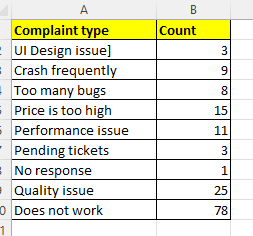
Here we will take an example of software complaint based on user input.

The column A contains the complaint type and column B contain the count of compliant type in a given period.


As we already have disused that the 80% of effect comes form 20% of cause.

As you know we have different version of MS Excel, If you are using the latest version of excel like 2016 onwards, you can create it very easily by just clicking in the suggested chart.

See the below picture, it will be easy for you

Select the Data then go to Insert menu you will see dialogue box, from that dialogue box select the Pareto chart from the list and click OK, as shown in the below figure


Once you click OK button a beautiful Pareto chart will appear, see the picture below


The pareto chart is created. You can bow customize your chart using various option available in the menu items like changing fonts, chart title, data grid and its various decoration.


Thank you friends, if you feel the information is valuable for you do share the post as much as you can

Suggested topic for you

Row Function in M S Excel

Row Function in M S Excel

Dear friends today I will discuss what is row function in excel, I will discuss in detail about it with 2-3 example, so be with us and read full blog


What is Row Function in Excel

Row function of excel provide unique sequence to each row number excel database or within the result data set.

See the below example, you can see each row has unique sequence number.


How Row function works in excel

Row function is a built in function of excel. It takes only one argument i.e. cell reference and give the row number.

=Row(A5) it will return 5
= Row(A6) it will return 6
=Row(10) it will return 10

Note here row function return the row number not the value of the cell

Example1

Here you can see the parameter/argument passed in the row function and its corresponding result

Let us understand with the help of one more example

Suppose you have to generate a serial number starting from row number 4 i.e. C4. From C4 for C10

the row function =ROW(C4) will give you result 4, but you want 1 at Cell C4. In such case your have to subtract 3 from that value like 

=ROW(C4) - 3, this will return 1 and if you drag down it will create a sequence form C4 to C10


Example2

    =ROW(A1:B10) - What it will return?
It will return 10 ,this means there is 10 rows available in the selected range.

Example3

If we want to count the number of available rows in the range A1:A1000, we can put the formula like =ROW(A1:A200)
In this case it will return 200, that means there is 200 rows available in the selected range or the count of available rows is 200 in the selected range 
 

Let us understand with some more example

Suppose you have list of student with name and roll number. As you know the roll number is both odd and even,

Now the task is to highlight the all the student having even roll number

Example4

This is the list of name of students with roll number at the end, 


Now the task is to highlight the Odd row number with green color

There are various way to achieve this task, I am showing my own way you pleas show your way in comments


Step1. Go to Conditional formatting in home section and then choose New rule


Step2. Once you click on the new rule, a new dialogue box will appear. From that dialogue box choose the last option Use formula to do formatting and put the formula below the box highlighted


Step3. In the below text box put formula =EVEN(ROW())=ROW()
            
Step4. Select the desired color you want and select OK


And you will get the result.

For more such amazing excel technique, please visit our You tube channel  Crazy Excel Tricks

Also visit

For more clarity pleas visit the below link


How to Convert Number to Text in MS Word

 How to Convert Number to Text in MS Word

Dear Friends today in this blog I will discuss, how to convert number to text in MS Word.

Friend you often face problem in converting number to text, specially if the number is to long. In that case its too difficult to convert in text.


To convert number to text you need to activate the calculation features of MS Word


To activate this calculation  press Ctrl + F9

Let say for example I want to convert the number 3549 to text

Step 1. Write the number you want to convert to text

Step 2 . Select the number using shift + arrow or using mouse

Step 3. Press Ctrl + F9

Once you press ctrl + F9 the word will be covered automatically in curly bracket({})


Step 4. Just before the number put =(equal sign)

             and after the number put \ (slash sign) and then put the text *cardtext

Step 5. Right click on the number and select update value


Once you click on the update value the number will be converted in to text


Once you click on the update value, it will show three thousand five hundred forty-nine


For more clarity pleas visit the below link


Calculate Features in M S Word

Calculation Features in M S Word


Dear Friend in this blog I will discuss, how to activate calculation features in M S word and how to activate calculation.

I will also show how to perform a simple calculation M S word.

To active the Calculation features in M S Word

1. Go to File menu
2. Select the option
3. Them choose Quick Access Tool bar
4. From that quick access tool bar choose All Command
5. and finally Choose the calculate option

Or 

Alternatively you can also perform the short cut key to activate calculation M S Word

Press Control + E 

A curly bracket { } will appear put all the calculation within that bracket and right click over that and select update cell, you will see the result

For Example

    {=500*30/100}

Once you right click over it, it will give you the desired result.        

See the below example


Also see the below video it will give you more clarity


Visit my You tube channel Crazy Excel Tricks for more interesting and informative videos


Here I have given you only one example, you can try many more and even it is capable to do more complex calculation

You ca try using creating table in M S Word and perform calculation like we do in M S Excel.


What Is Fuzzy Lookup In Excel

What Is Fuzzy Lookup In Excel  Fuzzy text matching is the process of finding text strings that are similar, but not exactly identical to a g...